Monday, May 13, 2013

Increase GWT compilation time


                      Many people say GWT takes long for compilation and reduces our development time. There are few options which you can try it!!

Reducing Permutations


                       By default, GWT compiles your application for all browsers. GWT spends time to compute permutations : create javascript file per browser/locale. If you have 5 browsers and 3 locales, GWT uses 15 permutations.


You can use some hacks here and there. A nice performance hack you can do is to compile for only specific browsers, by inserting the following line in your gwt.xml:
<set-property name="user.agent" value="gecko1_8"/>

This example, will compile your application for IE and FF only. If you know you are using only a specific browser for testing, you can use this little hack.
You can see list of user agents here
Another option: if you are using several locales, and again using only one for testing, you can comment them all out so that GWT will use the default locale, this shaves off some additional overhead from compile time.
In the newer versions of GWT (starting either 2.3 or 2.4, i believe), you can also add
<collapse-all-properties />
to your gwt.xml for development purposes. That will tell the GWT compiler to create a single permutation which covers all locales and browsers. Therefore, you can still test in all browsers and languages, but are still only compiling a single permutation

Increase local workers          

                  If you run the GWT compiler with the -localWorkers flag, the compiler will compile multiple permutations in parallel. This lets you use all the cores of a multi-core machine, for example -localWorkers 2 will tell the compiler to do compile two permutations in parallel. You won't get order of magnitudes differences (not everything in the compiler is paralleled)  but it is still a noticeable speedup if you are compiling multiple permutations.

Using draftCompile 

                 As per spec -draftCompile which enables compilation faster, but less-optimized compilations -optimize 0 which does not optimize your code (9 is the max optimization value). Best suits for testing environment. 

Controlling Permutation

              GWT offical doc is detailed this approach. 


Analyze Application Load Time

Introduction

                  There could be several reasons your application is slow. This article discuss about couple of common problems which application faces.

Improve Initial Load Time (Soyc Report)

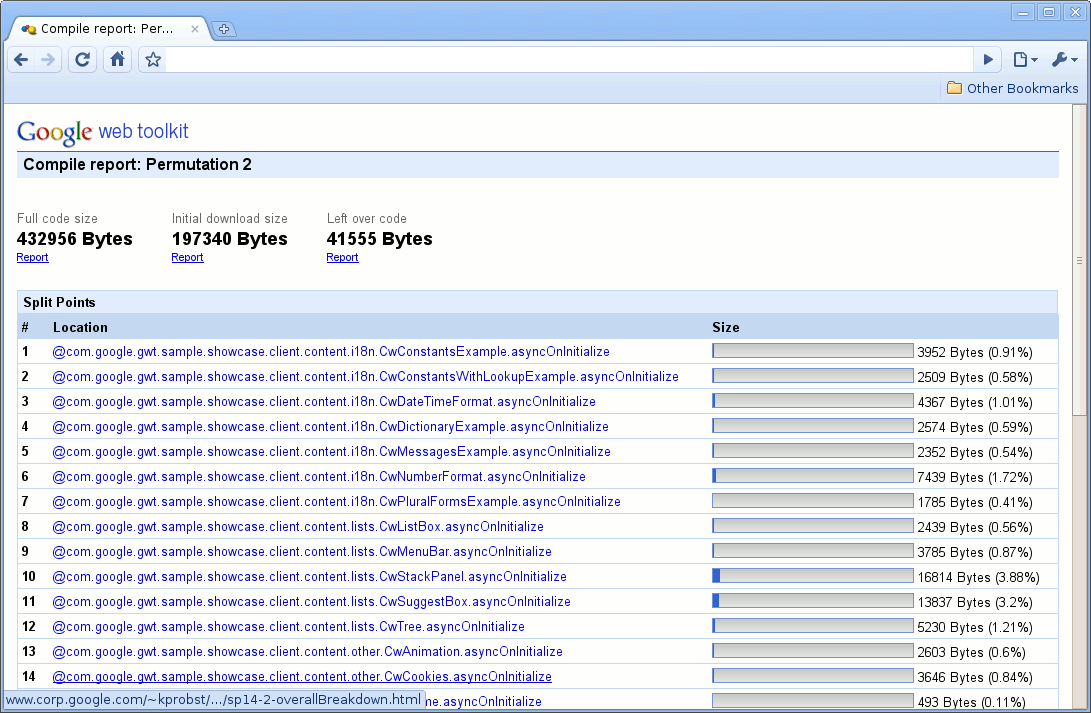
            As soon as the GWT client code grows in size, it takes longer time to load. Luckily GWT provides a way to find out initial load and address this issue. GWT provides way to generate a report called soyc report (Story Of Your Compiler).

        The goal of this story will be to identify the sweet spots that will allow you to gain the performance benefit by splitting the code. This report identifies the bottlenecks in the code and proposed code split points. A brief introduction here, this document is detailed enough to understand about soyc.

https://developers.google.com/web-toolkit/doc/latest/DevGuideCompileReport

         A Compile Report is not produced by default, but it is easy to get the compiler to do so by setting a compiler flag. https://developers.google.com/web-toolkit/doc/latest/DevGuideCompileReport#Usage

                  -Dgwt.compiler.compileReport=true -Dgwt.compiler.soycDetailed=true

      By default report will be generated on Your Project/target/extra/compile-report/index.html unless the -extra compile flag is included.


        Report breaks down into package, type and literals. Once the report is generated you can start applying code splits. Refer GWT offical doc for more understanding. To split your code, simply insert calls to the method GWT.runAsync at the places where you want the program to be able to pause for downloading more code. These locations are called split points. It will drastically improve application load time if causes are downloading code. 

        https://developers.google.com/web-toolkit/doc/latest/DevGuideCodeSplitting

Using Google Pagespeed


                   To speed up web app loading time, ofcouse split points is a first step.
Slowness can also come from uncompressed pictures for instance.
Also, when you compile your GWT app, ensure you use "OBFUSCATED" mode for your compiled javascript, which makes it significantly smaller.
Now if you are using Apache HTTPD as web server, Google has released a wonderful Apache module that implements web app best practices out of the box: http://code.google.com/p/modpagespeed/

Trouble Shoot


1) End up with exception "Unable to write to byte cache". It could be problem with disk space or report is very huge. Reduce GWT compile permutation and try it.

2) In case you are using maven add soycDetailed and compileReport tag with value true.


Sunday, May 12, 2013

Running GWT superdev mode - Boost up GWT Debugging


Introducing GWT Super Dev Mode


                       Super Dev Mode is an experimental replacement for GWT's Development Mode. Like its predecessor (which I'll call classic Dev Mode), Super Dev Mode allows GWT developers to quickly recompile their code and see the results in a browser. It also allows developers to use a debugger to inspect a running GWT application. However, it works differently.
                        This document talks about how to configure super dev mode. For introduction and background refer GWT official doc https://developers.google.com/web-toolkit/articles/superdevmode


SuperDevMode Setup


The below instructions are gives the formal introduction to setup the superdevmode for any GWT application. To run the superdevmode, we need code server and our application server. The below steps are summarizing these steps.

Code Server Setup


  1. In eclipse, Create new GWT webapplication if you don't have one
  2. Add the below lines in the application's .gwt.xml moduel to enable superdev mode
    <add-linker name="xsiframe"/>
    <set-configuration-property name="devModeRedirectEnabled" value="true"/>

    <set-property name="compiler.useSourceMaps" value="true">
    </set-property>

    The below mentioned property is needed if you have script tags in any of your ".gwt.xml" files.
    <set-configuration-property name='xsiframe.failIfScriptTag' value='FALSE'/>
  3. Right click on your GWT project and go to Run As-> Run Configuration
  4. Select Java application -> right click -> Create new configuration like below

  5. Enter 'com.google.gwt.dev.codeserver.CodeServer' as our main class
  6. In the arguments tab, enter the program arguments with format '-src sourcefolder moduleName'. Below screenshot gives the example
  7. In the classpath tab, select user entries -> Add External Jars -> Select 'gwt-codeserver.jar' from the eclipse gwt sdk installation directory (It would be like 'eclipse-jee-juno-SR1-win32-x86_64\eclipse\plugins\com.google.gwt.eclipse.sdkbundle_2.5.0.v201211121240-rel-r42\gwt-2.5.0'). Refer the below screenshot for example

  8. Now, click Apply and run the application
  9. Once codeserver started, it will show the information like below in the console
  10. Open the url http://localhost:9876/ in the browser and will show the information like below
  11. Drag and Drop 'Dev Mode On' and 'Drag Mode Off' buttons to the bookmark bar
  12. Now, Right click on your project and Run As -> Web application
  13. Once application started, open the application in the browser without gwt.codeserver plugin parameter like 'http://127.0.0.1:8888/TestProject.html' 
  14. It might show the below alert information, ignore that and click 'Ok'

  15. Once application's html page loaded, click 'Dev Mode on' from the bookmark bar. It will popup the modules to recompile as shown below

  16. Compile the required modules and once its done reload the page
  17. Now, we can able to see the GWT application in the browser

Application Debugging with SourceMap


The advantage of superDevMode is javascript debugging. Right now, only chrome browser supports one of HTML5 functionality 'source map'.  To enable this functionality follow the below steps


  1. From the chrome browser-> go to developer tools (shortcut key F12)
  2. In the developer tools panel, select settings
  3. In the settings panel, enable the 'source map' check box as shown below

  4. After enabling source map, reload the page. In the developer tool, select 'source'tab
  5. Now, we can see the client java classes in the left navigation tree. From that, select required classes and place breakpoints, watch etc., and enjoy. The sample screen shown below

Trouble Shoot


Source map is not working in chrome? 
In chrome 24+, source map will not work with current version (related to gwt 2.5) of code server. To fix this, we can downgrade chrome for 22 or build the gwt code server from the trunk. Already fix is available for code server in trunk to support chrome 24+ versions.
How to run code server in Eclipse classroom project?
  1. Right click on the application project and select Run As–> Run configurations... --> Java applications and create new configuration for coder server.
  2. In the new configuration, select Class path and in the user entries section 
    1. Add codeserver Jar
    2. Add GWT dev jars 
    3. Add all project dependencies as mentioned in the below screen

      Make sure right version of jars are there
     3. Click Run and that's All!